As a freelancer, maintaining a distraction-free workspace is crucial for productivity. Unsolicited political text messages can disrupt your workflow and invade your privacy. To effectively block these interruptions, consider using Robokiller, a leading app designed to eliminate unwanted calls and texts.
What Is Robokiller and How Does It Work?
Robokiller is an award-winning app that utilizes advanced artificial intelligence and machine learning to block up to 99% of spam calls and texts. By analyzing the origin, content, and attachments of each message, Robokiller determines its safety, moving identified spam texts to a designated "Unknown & Junk" folder in your messaging app. This process ensures that your primary inbox remains free from unwanted messages. (robokiller.com)
How Does Robokiller Block Political Texts?
Robokiller employs a multi-layered approach to filter out political spam:
-
Block/Allow List: You can manually add numbers to your Block List, ensuring that messages from these senders are automatically moved to your Junk folder. Conversely, numbers on your Allow List will have their messages delivered normally. (support.robokiller.com)
-
Number Reputation: Robokiller checks incoming numbers against a global database of known spam sources. Messages from numbers with a history of spam activity are blocked automatically. (support.robokiller.com)
-
Content Analysis: The app scans incoming messages for keywords and patterns associated with scams or political spam. If a message matches these criteria, it's flagged and moved to your Junk folder. (support.robokiller.com)
How to Set Up Robokiller to Block Political Texts
For Android Users:
- Open your phone's Settings.
- Navigate to Apps > Default apps > SMS app.
- Select Robokiller as your default SMS app.
Note: Robokiller must be set as your default messaging app to fully filter spam texts on Android. (support.robokiller.com)
For iOS Users:
- Open the Settings app.
- Tap on Messages > Unknown & Spam.
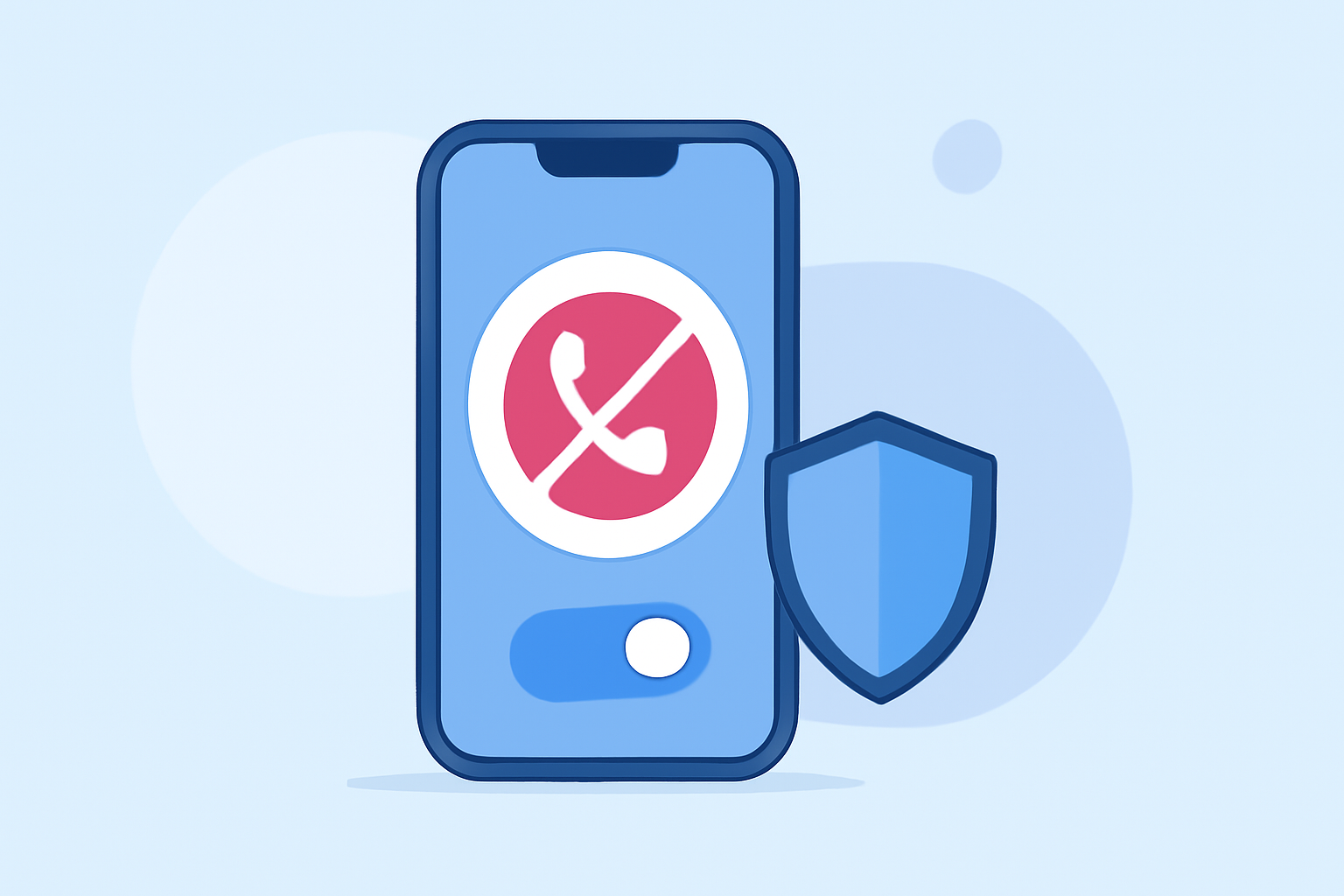
- Toggle on Robokiller.
Note: Filtered messages will appear in the SMS Junk folder in the Messages app. (support.robokiller.com)
Why Choose Robokiller Over Other Apps?
While there are several apps available to block unwanted texts, Robokiller stands out due to its comprehensive features:
-
High Blocking Efficiency: Robokiller blocks up to 99% of spam calls and texts, including political messages. (robokiller.com)
-
Advanced Technology: The app uses predictive analytics and audio fingerprinting to identify and block spam, ensuring that legitimate calls and texts are not disrupted. (robokiller.com)
-
User Control: Robokiller allows users to customize their block and allow lists, providing greater control over who can contact them. (robokiller.com)
Additional Tips for Managing Political Texts
-
Unsubscribe: Reply with "STOP" or contact the campaign directly to be removed from their list. (robokiller.com)
-
Report Scams: If you receive a suspicious political text, report it to the appropriate authorities to help prevent future scams. (robokiller.com)
Conclusion
For freelancers seeking to eliminate unwanted political text messages, Robokiller offers a robust solution. Its advanced filtering capabilities and user-friendly features ensure that your communication remains focused and free from distractions. By implementing Robokiller, you can maintain a productive work environment and protect your privacy from unsolicited political messages.