To view your iPhone's call history for today, follow these steps:
-
Open the Phone App: Tap the Phone icon on your iPhone's home screen.
-
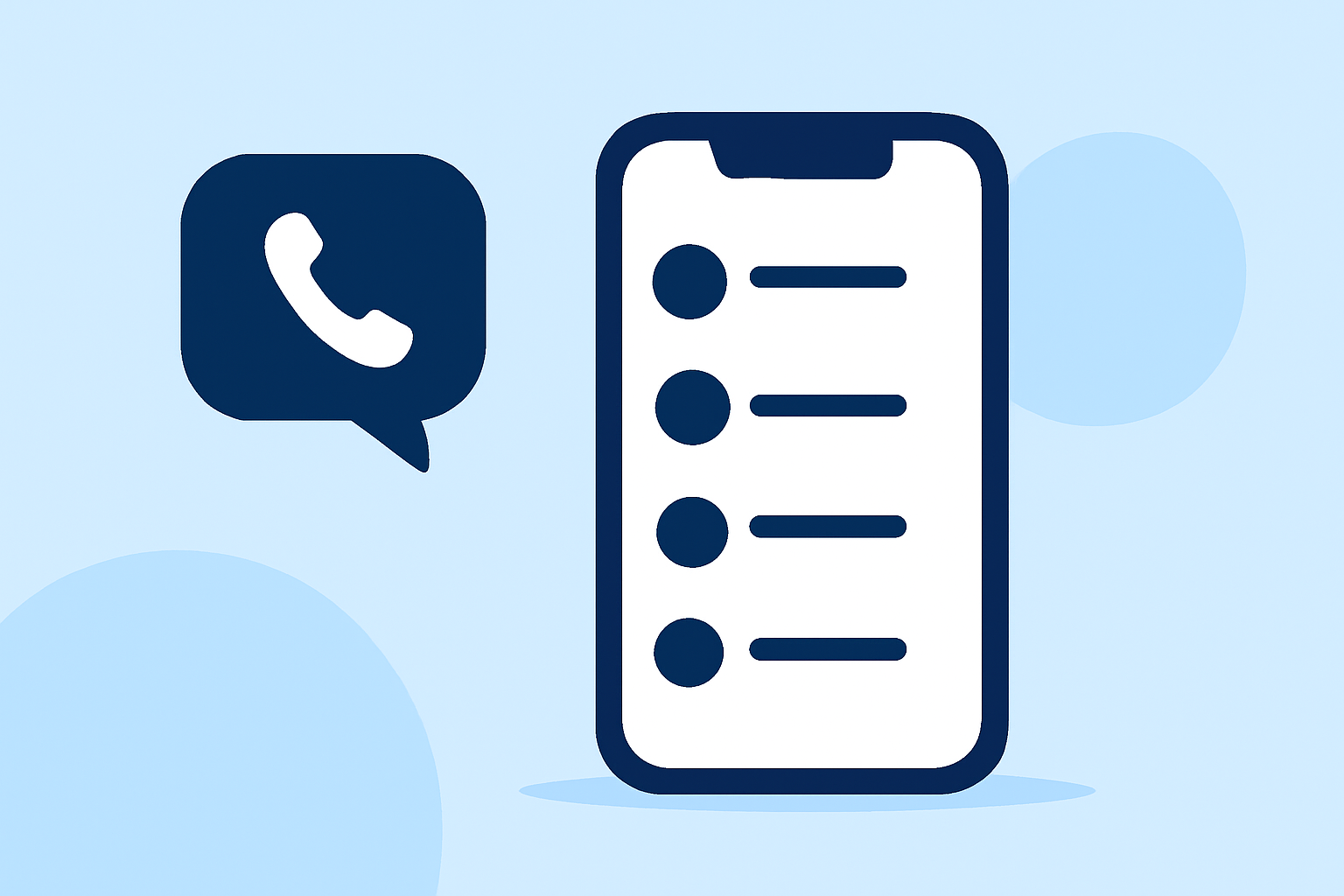
Access the Recents Tab: At the bottom of the screen, tap on the "Recents" tab to see a list of recent calls.
-
Filter Today's Calls: While iOS doesn't provide a direct filter for today's calls, you can manually scroll through the list to find calls made or received today.
-
View Call Details: Tap the "i" (information) icon next to a specific call to see more details, such as the call duration and exact time.
For a more comprehensive view, especially if you're using iOS 26 or later, you can access the full call history with a specific contact:
-
Open the Phone App: Tap the Phone icon.
-
Go to Recents: Tap the "Recents" tab.
-
Find the Contact: Locate the contact whose call history you want to view.
-
Access Call History: Tap the contact's name, then tap "Call History" to see a complete list of calls with that contact, including dates, times, and durations.
If you're looking for a more organized and detailed call log, consider using third-party apps like Robokiller. Robokiller not only provides spam call blocking but also offers features to manage and view your call history more effectively. By integrating with your iPhone, Robokiller can help you keep track of your calls and protect you from unwanted spam.
For a visual guide on accessing your full call history on iOS 26, you might find this video helpful: