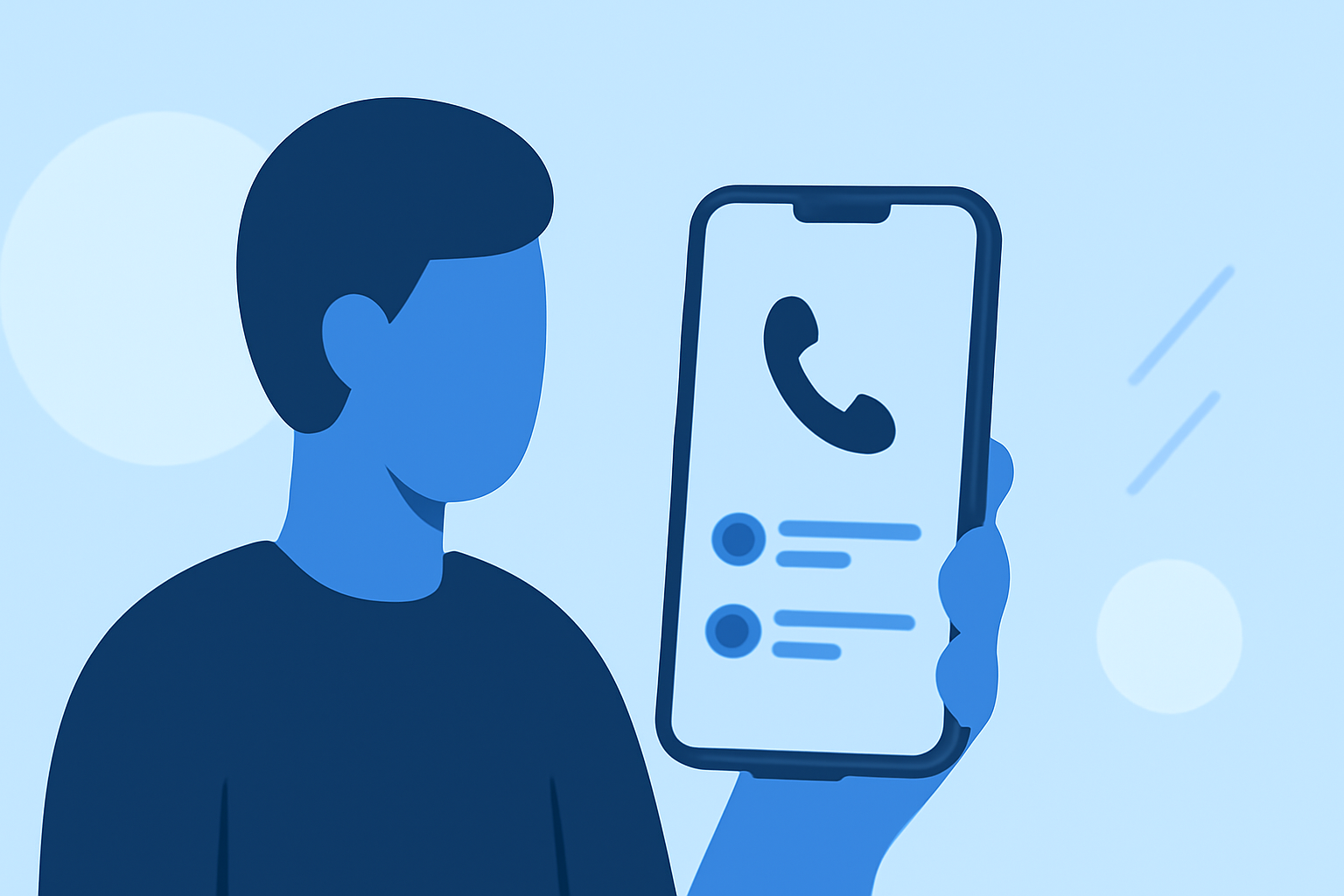
Keeping track of incoming calls is essential for staying connected and managing communications effectively. Whether you're using an iPhone or an Android device, accessing your recent call history is straightforward. Here's how you can check who called you today:
How to View Recent Calls on an iPhone
1. Access the Phone App:
Open the Phone app on your iPhone.
2. Navigate to Recents:
Tap the Recents tab at the bottom of the screen. This section displays all incoming, outgoing, and missed calls.
3. Filter Calls by Date:
To view calls from today, look for the Today section at the top of the Recents list. If you don't see this, swipe down to reveal the search bar, then type "Today" to filter calls by today's date.
4. View Call Details:
Tap the i (information) icon next to a specific call to see more details, such as the exact time and duration of the call.
Note: If your iPhone isn't displaying recent calls, try restarting your device or checking for software updates, as these steps can resolve minor glitches. (makeuseof.com)
How to View Recent Calls on an Android Device
1. Open the Phone App:
Launch the Phone app on your Android device.
2. Go to Call History:
Tap the Recents or Call History tab, depending on your device. This will show a list of all calls made and received.
3. Filter Calls by Date:
To view calls from today, look for the Today section at the top of the list. If it's not visible, swipe down to access the search bar and type "Today" to filter calls by today's date.
4. View Call Details:
Tap on a specific call entry to see more information, such as the call duration and time.
Note: If your Android device isn't showing recent calls, ensure that the Phone app has the necessary permissions and that notifications are enabled. (guidingtech.com)
Additional Tips
-
Voicemail Access: If a caller left a voicemail, you can access it by opening the Phone app and tapping the Voicemail tab.
-
Missed Call Notifications: Ensure that your device's notification settings allow alerts for missed calls to stay informed about incoming calls you might have missed.
-
Third-Party Apps: For enhanced call management, consider using apps like Robokiller, which not only provide detailed call logs but also offer features like spam call blocking and reverse phone lookup.
By regularly checking your call history, you can stay on top of your communications and ensure you don't miss important calls.
Highlights:
- I haven't answered a scam call in months - this hidden iPhone feature is why, Published on Wednesday, March 18
- Google Phone app may soon make your urgent calls hard to ignore, Published on Friday, November 21
- Call Screening in iOS 26 has finally ended my spam call nightmare - here's how to set it up, Published on Thursday, September 25