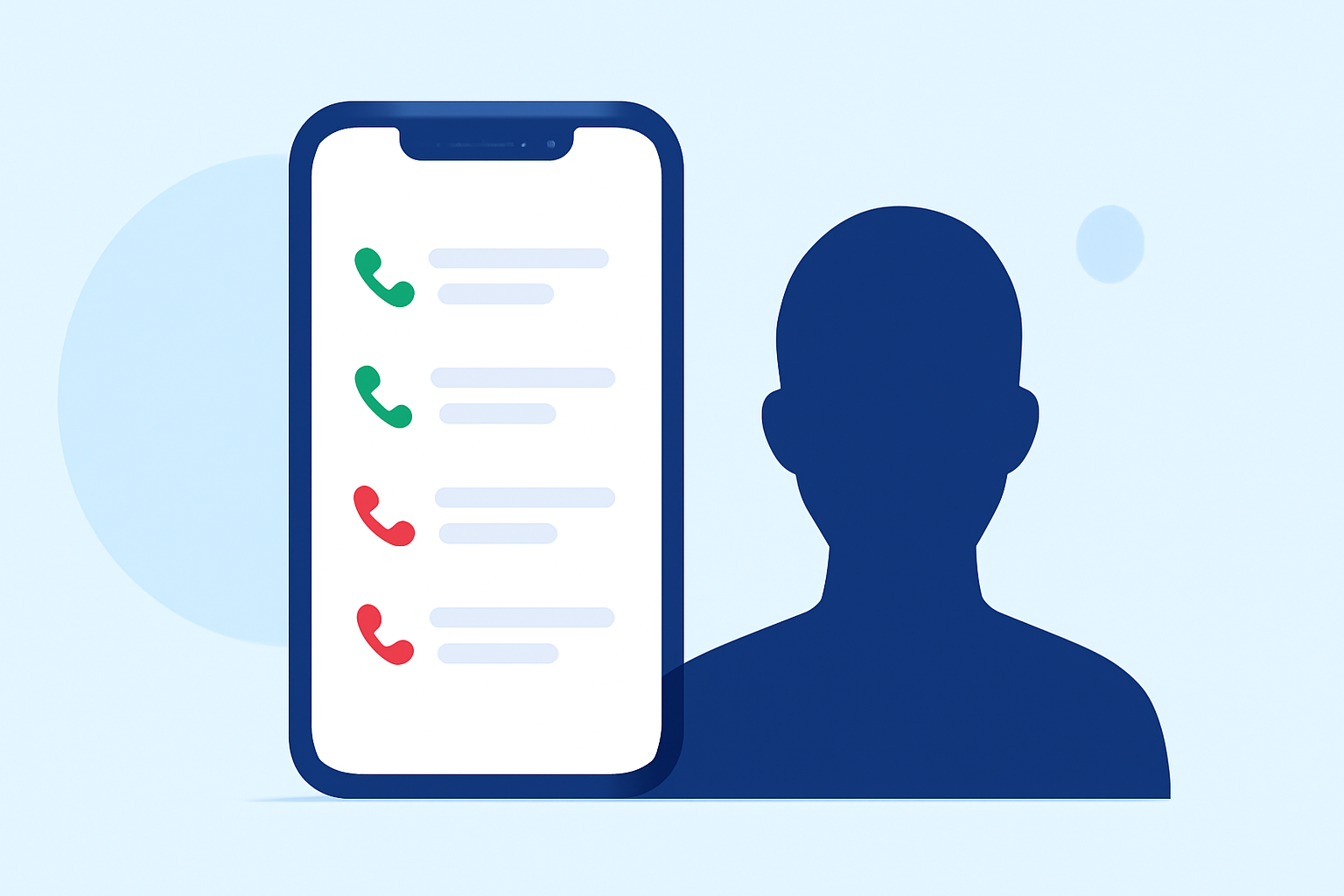
Keeping track of your recent calls is essential for staying connected and organized. Here's how you can view your call history on both iPhone and Android devices.
How to View Recent Calls on an iPhone
Accessing Your Call History:
- Open the Phone app on your iPhone.
- Tap the Recents tab at the bottom of the screen.
This will display a list of your recent calls, including incoming, outgoing, and missed calls. Each entry shows the contact name (if saved), phone number, date, time, and call duration.
Viewing Details of a Specific Call:
- In the Recents tab, locate the call you want to examine.
- Tap the info (i) button next to the contact or number.
This will provide detailed information about the call, such as the exact time and duration.
Managing Your Call History:
-
Deleting a Single Call:
-
Swipe left on the call entry and tap Delete.
-
Clearing All Call History:
-
Tap Edit in the top-right corner.
-
Tap Clear in the top-left corner.
-
Confirm by tapping Clear All Recents.
Note: iPhones typically store up to 100 recent calls. If you need access to older call logs, consider checking your carrier's website or contacting their customer service for assistance.
How to View Recent Calls on an Android Phone
Accessing Your Call History:
- Open the Phone app on your Android device.
- Tap the Recents tab to view your call log.
This will display a list of your recent calls, including incoming, outgoing, and missed calls. Each entry shows the contact name (if saved), phone number, date, time, and call duration.
Viewing Details of a Specific Call:
- In the Recents tab, locate the call you want to examine.
- Tap the contact or number to open the call details.
This will provide detailed information about the call, such as the exact time and duration.
Managing Your Call History:
-
Deleting a Single Call:
-
Tap and hold the call entry you want to delete.
-
Tap Delete or the trash can icon.
-
Clearing All Call History:
-
Tap the three-dot menu icon in the top-right corner.
-
Select Call history.
-
Tap the three-dot menu icon again and select Clear call history.
-
Confirm by tapping Clear.
Note: The exact steps may vary slightly depending on your device manufacturer and Android version.
Using Robokiller to Manage Unwanted Calls
If you're receiving unwanted calls, such as spam or robocalls, consider using Robokiller. Robokiller is a market-leading solution that blocks spam calls and provides detailed information about incoming calls, helping you manage your call history more effectively.
Key Features of Robokiller:
- Spam Call Blocking: Automatically blocks known spam numbers, reducing unwanted interruptions.
- Call Analytics: Provides detailed reports on incoming calls, including caller information and call frequency.
- Customizable Settings: Allows you to set preferences for call blocking and notifications.
By integrating Robokiller with your device, you can enhance your call management experience and ensure that your call history remains relevant and free from unwanted entries.
Note: Robokiller is available for both iPhone and Android devices.
Conclusion
Accessing and managing your recent call history is straightforward on both iPhone and Android devices. By following the steps outlined above, you can keep track of your communications effectively. Additionally, using tools like Robokiller can help you manage unwanted calls and maintain a cleaner call log.
Highlights:
- Android phones are finally getting a way to flag 'urgent' calls, Published on Monday, December 15
- I haven't answered a scam call in months - this hidden iPhone feature is why, Published on Wednesday, March 18