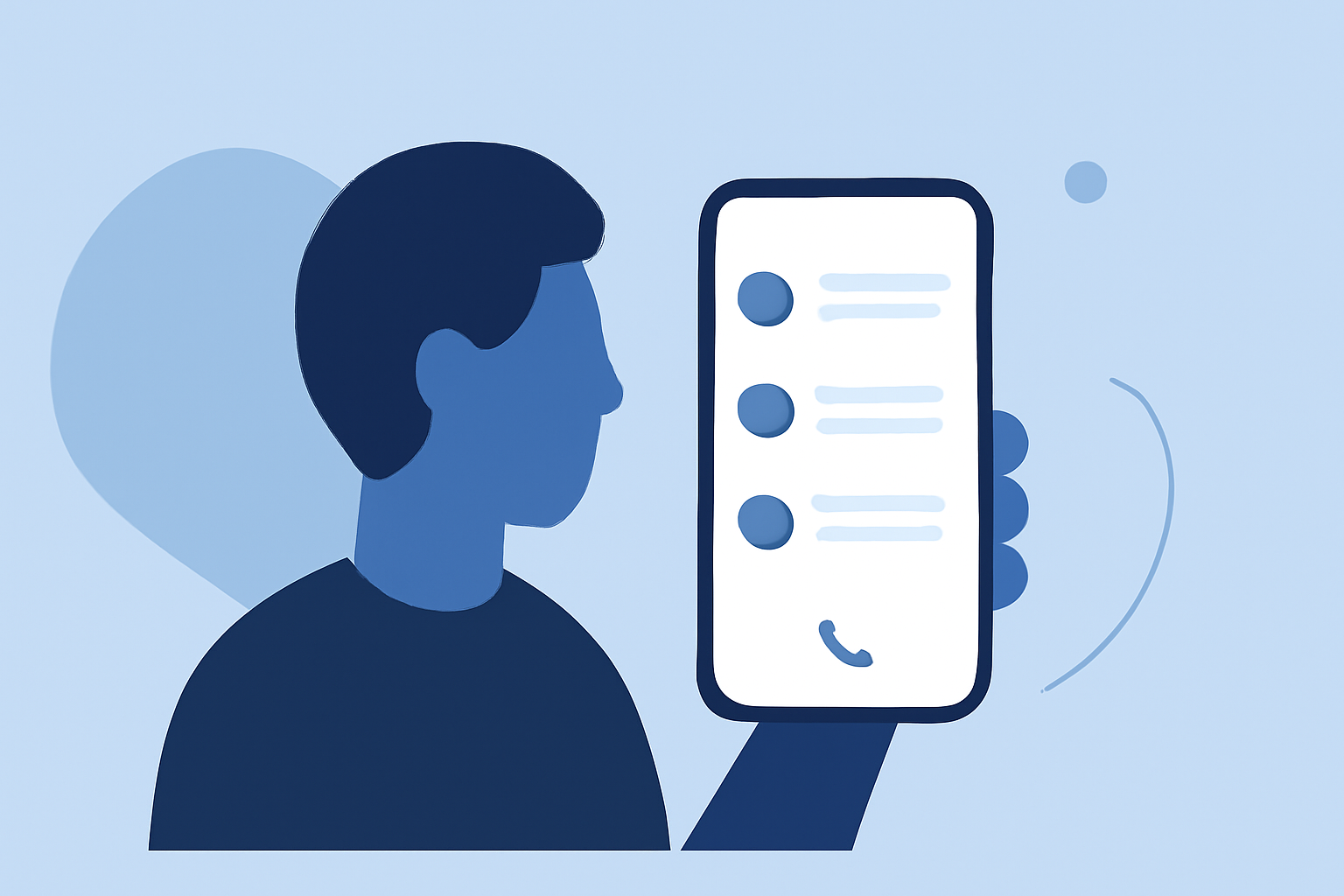
Keeping track of your recent calls is essential for managing communications and ensuring you don't miss important conversations. Here's how you can access and manage your call history on both iPhone and Android devices.
How Do I View My Recent Calls on an iPhone?
To access your recent call history on an iPhone:
- Open the Phone App: Tap the green Phone icon on your home screen.
- Select the 'Recents' Tab: This tab displays a list of all incoming, outgoing, and missed calls.
Each entry shows the contact name (if saved), phone number, and the date and time of the call. To view more details about a specific call, tap the information icon (ⓘ) next to the entry. This will display the call duration and whether it was incoming or outgoing.
Note: iPhones typically store up to 100 recent calls. If you need to access older call logs, consider checking your carrier's website or contacting their customer service for assistance.
How Can I Access My Recent Calls on an Android Phone?
The process to view recent calls on Android devices can vary slightly depending on the manufacturer and the default phone app. Here's a general guide:
- Open the Phone App: Tap the Phone icon on your home screen.
- Go to the 'Recents' or 'Call History' Tab: This section lists all your recent calls.
Each entry will display the contact name (if saved), phone number, and the date and time of the call. To view more details about a specific call, tap on the entry. Some devices may show additional options, such as call duration or the ability to add the number to contacts.
Note: The exact steps may vary depending on your device's manufacturer and the version of Android you're using. If you're unable to find your call history, refer to your device's user manual or support website for specific instructions.
What Should I Do If My Recent Calls Aren't Showing Up?
If your recent calls aren't appearing as expected, consider the following troubleshooting steps:
- Restart Your Phone: A simple restart can resolve many temporary glitches.
- Check Date and Time Settings: Ensure your device's date and time are set correctly, as incorrect settings can affect call logs.
- Update Your Phone App: Ensure that your phone app is up to date, as updates often fix bugs related to call logs.
- Contact Your Carrier: If the issue persists, your carrier may be able to provide assistance or access to your call records.
Note: For iPhone users, if restarting doesn't resolve the issue, you might also try force-quitting and reopening the Phone app. Additionally, ensure that your device's software is up to date, as updates can fix bugs related to call logs. (idownloadblog.com)
How Can I Delete Specific Calls from My Call History?
To delete individual calls from your call history:
-
On iPhone: Open the Phone app, go to the 'Recents' tab, swipe left on the call you want to delete, and tap 'Delete'.
-
On Android: Open the Phone app, go to the 'Recents' or 'Call History' tab, tap and hold the call you want to delete, and select 'Delete' or 'Remove from call history'.
Note: Deleting a call from your history removes it from your device but doesn't affect the other party's call logs.
How Can I View Call History for a Specific Contact?
To view the call history for a particular contact:
-
On iPhone: Open the Phone app, go to the 'Contacts' tab, select the contact, and scroll down to see their call history.
-
On Android: Open the Phone app, go to the 'Contacts' or 'People' tab, select the contact, and tap on the 'History' or 'Call History' option.
Note: The availability of this feature may vary depending on your device and the version of the operating system.
How Can I Prevent Unwanted Calls from Appearing in My Call History?
To prevent unwanted calls from appearing in your call history:
- Block the Number: On both iPhone and Android, you can block specific numbers to prevent them from calling you.
- Use Do Not Disturb Mode: This mode silences calls and notifications, allowing only calls from your contacts or favorites.
- Use Third-Party Apps: There are apps available that can help identify and block spam or robocalls.
Note: Blocking a number will prevent them from calling or texting you, but it won't remove past calls from your call history.
By following these steps, you can effectively manage your call history and ensure that your device accurately reflects your recent communications.