Unwanted calls from unknown numbers can be a significant nuisance, disrupting your daily routine and potentially exposing you to scams. Fortunately, your iPhone offers several built-in features to help you manage these calls effectively. In this guide, we'll explore how to screen unknown callers using your iPhone's native settings and discuss additional solutions to enhance your call management.
What Are Unknown Callers on iPhone?
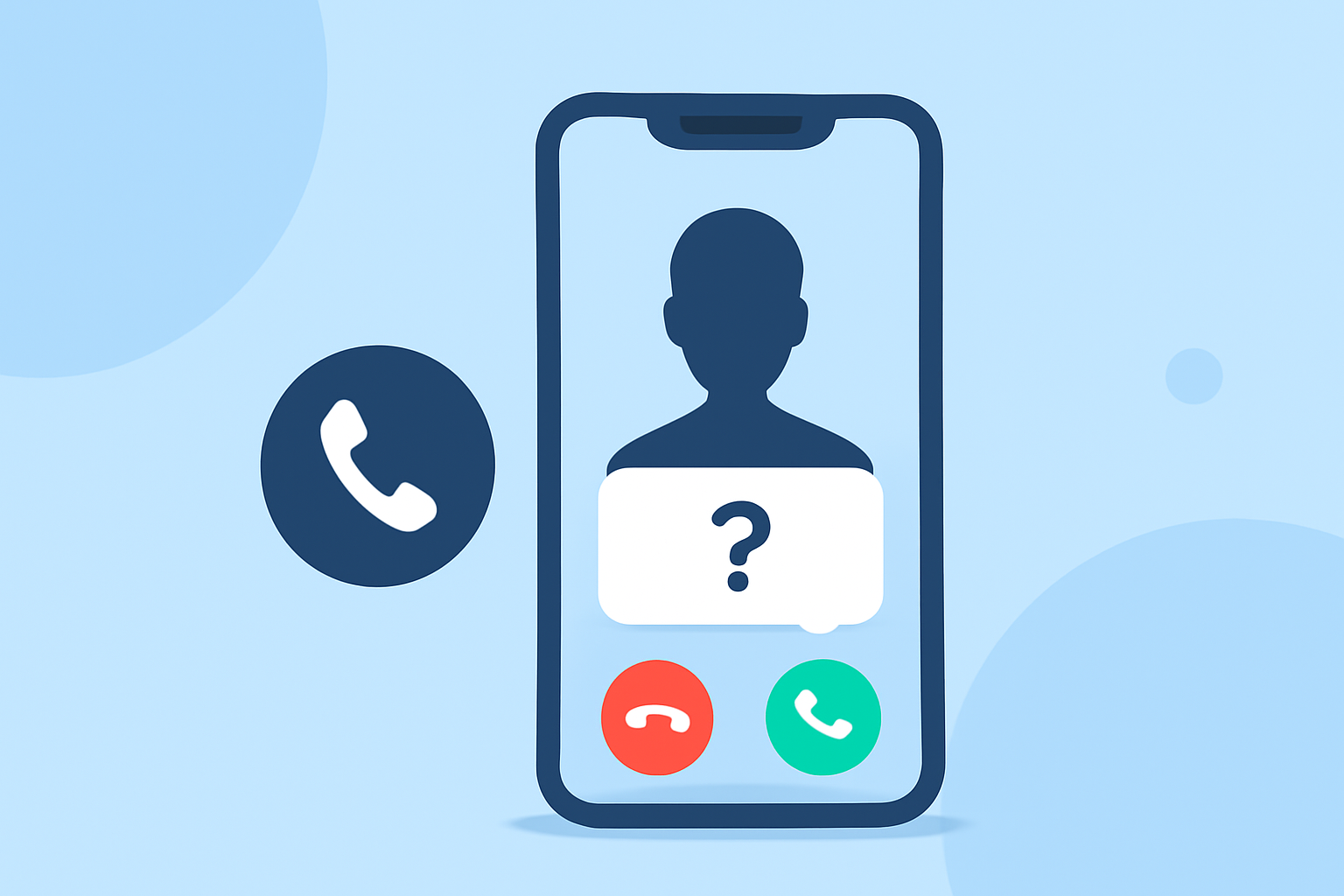
An "unknown caller" on your iPhone refers to any incoming call from a number not saved in your contacts list. This includes telemarketers, robocalls, and other unsolicited calls. Apple provides features to help you manage these calls, allowing you to decide how to handle them.
How Can I Screen Unknown Callers on My iPhone?
Apple has introduced several features to help you screen unknown callers:
1. Screen Unknown Callers
With iOS 26, Apple introduced the "Screen Unknown Callers" feature, which automatically answers calls from unknown numbers and asks the caller to state their name and reason for calling. This information is transcribed and displayed on your screen, allowing you to decide whether to answer the call. To enable this feature:
- Open the Settings app on your iPhone.
- Tap Phone.
- Select Screen Unknown Callers.
- Choose Ask Reason for Calling.
This feature helps filter out unwanted calls by requiring unknown callers to provide identifying information before your phone rings. (support.apple.com)
2. Silence Unknown Callers
If you prefer not to be disturbed by unknown callers, you can enable the "Silence Unknown Callers" feature. This option silences calls from numbers not in your contacts and sends them directly to voicemail. To activate this feature:
- Go to Settings.
- Tap Phone.
- Toggle on Silence Unknown Callers.
With this setting, your iPhone will automatically silence calls from unknown numbers, reducing interruptions from unsolicited calls. (support.apple.com)
3. Filter Unknown Callers
The "Filter Unknown Callers" feature moves calls from unknown numbers to a separate list, keeping your main call log uncluttered. To enable this feature:
- Open Settings.
- Tap Phone.
- Toggle on Filter Unknown Callers.
This feature helps you manage calls more efficiently by separating unknown callers from known contacts. (support.apple.com)
Are There Third-Party Apps to Help Screen Unknown Callers?
Yes, several third-party apps can enhance your ability to screen unknown callers:
- Robokiller: This app identifies and blocks spam calls, providing real-time alerts and detailed reports.
- Truecaller: Offers caller ID and spam blocking features, allowing you to see who is calling and block unwanted numbers.
These apps can be downloaded from the App Store and may offer additional features beyond the built-in options.
How Do I Block Specific Numbers on My iPhone?
To block a specific number on your iPhone:
- Open the Phone app.
- Tap the Contacts tab.
- Select the contact you want to block.
- Scroll down and tap Block this Caller.
Blocked numbers will not be able to call, text, or FaceTime you. (support.apple.com)
What Should I Do If I Miss an Important Call from an Unknown Number?
If you miss a call from an unknown number, you can check your voicemail or the "Recents" tab in the Phone app to see if a message was left. If the call was important, the caller will likely leave a voicemail or send a text message.
Conclusion
Managing unknown callers on your iPhone is essential to reduce interruptions and protect yourself from potential scams. By utilizing the built-in features like "Screen Unknown Callers," "Silence Unknown Callers," and "Filter Unknown Callers," you can have greater control over your incoming calls. Additionally, third-party apps like Robokiller and Truecaller offer enhanced call screening capabilities. Remember to review your call settings periodically to ensure they align with your preferences.
Highlights:
- Call Screening in iOS 26 has finally ended my spam call nightmare - here's how to set it up, Published on Thursday, September 25
- One Tech Tip: Annoyed by junk calls to your iPhone? Try the new iOS 26 call screen feature, Published on Wednesday, October 08
- How to block spam calls on iPhone, Published on Saturday, August 23